Digital dashboards that help you identify deviations and make the right decisions.

Capture your deviations and turn them into improvements
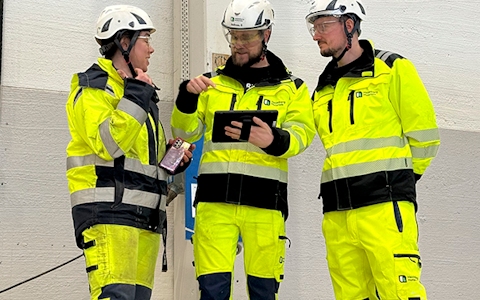
Continuous improvement, Kaizen boards, PDCA and other tools.
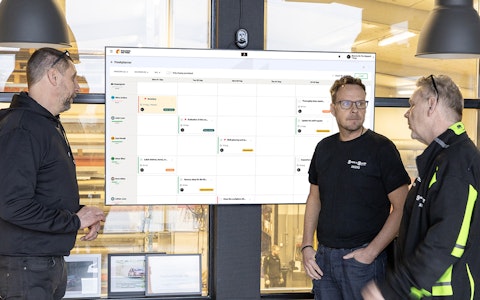
All your team’s tasks, neatly organized in one weekly view.
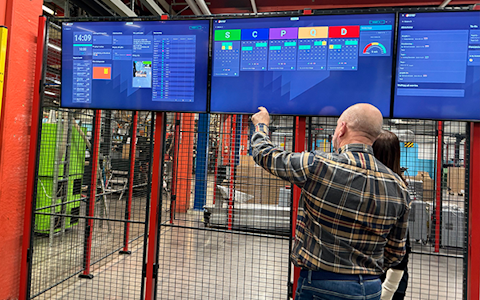
Improve key performance indicators within your specific focus areas with our SQCDP board.

Use the PDCA cycle as a tool to improve both quality and processes
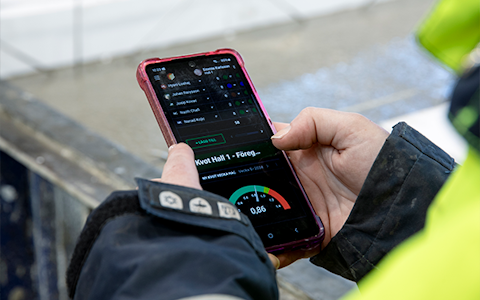
Digital tools for 5S work, recurring audits, and a well-organized workplace.
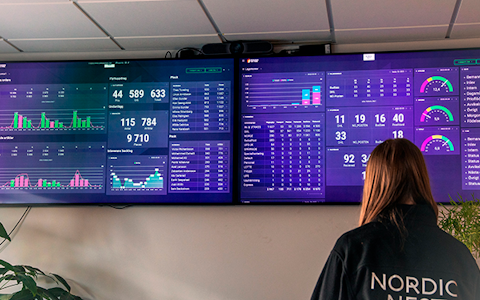
Visualize KPIs and communicate effectively throughout the entire organization.

Basic project management and activity boards.
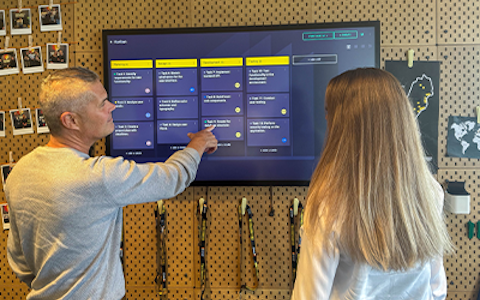
Kanban is a powerful method for visualizing, managing, and optimizing workflows.

Digital dashboards for takt time flow with takt time counter and stop time log.
Digital visitor registration provides full control over all planned and executed visits to your business.
Our notifications ensure your team stays up to date and can act quickly on important information. By receiving notifications for Tasks, Deviations, Improvements, Entities and Visits, you avoid missing critical deadlines or assignments.
• Responsibility & deadlines: Receive notifications when someone is assigned or removed as responsible, with reminders both the day before and the day after a deadline passes.
• Custom completion marking: Even for your own entities, you can configure notifications to stop when rows are marked as complete in a specific field.
• Visit flow: Responsible users receive immediate in-app notifications when a visit is registered as arrived.
• Accessibility: Notifications appear directly in the app but can also be sent as a consolidated email every 15 minutes if desired.
Note: Notifications are not triggered when a user assigns an activity to themselves. This applies to tasks, deviations, improvements, and custom entities. Notifications are only sent when another user assigns or removes a responsible party, to avoid unnecessary messages. The notification will show which user performed the assignment or removal.
To enable notifications for an entity and assign responsibility, the entity must have a field of "User" type. If this field is missing, it must be added first.
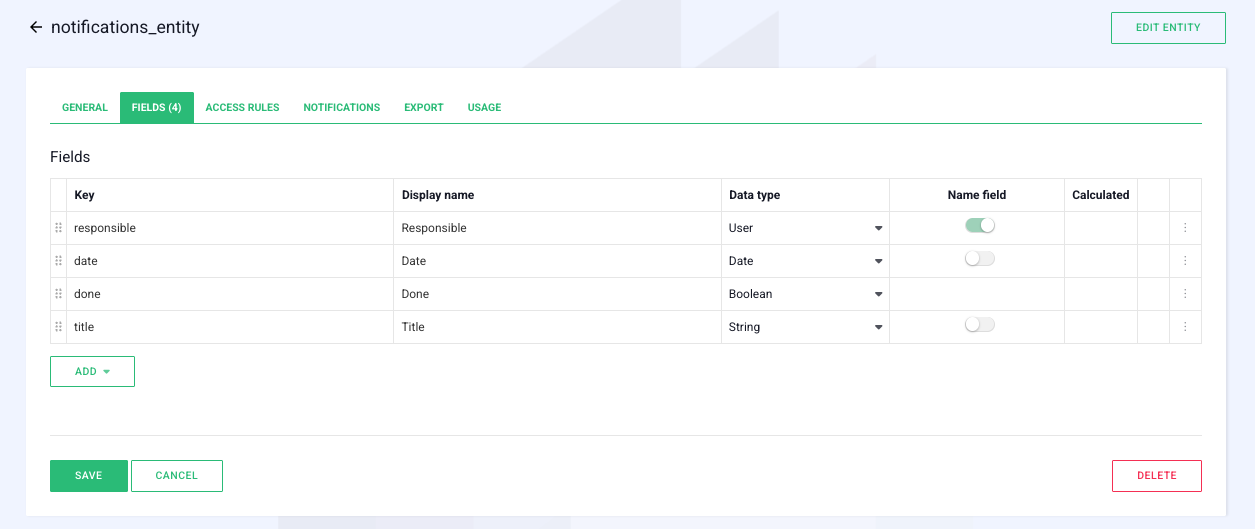
Go to the "Notifications" tab. You will see that notifications are not yet enabled for the created entity. Start by selecting which field will indicate the responsible user for the activity.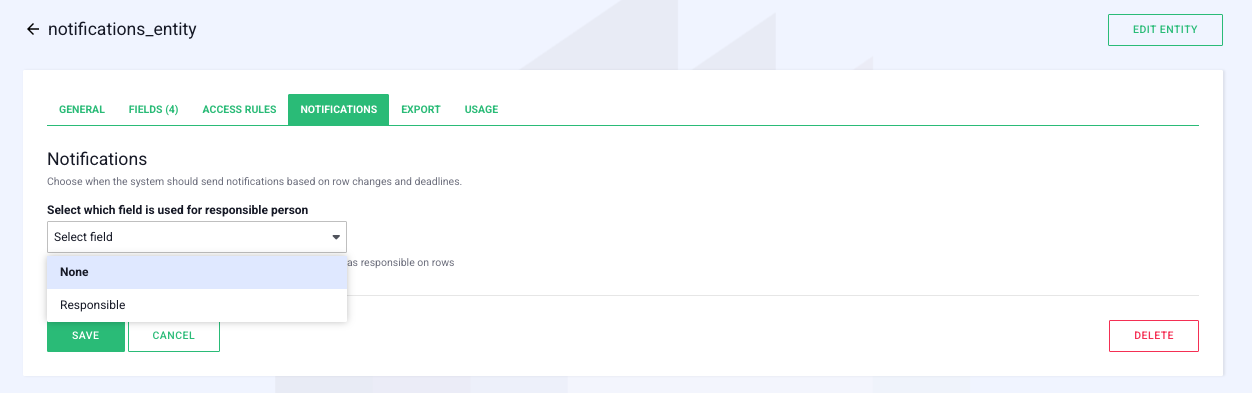
Once you have chosen a responsibility field and saved the settings, notifications are activated for the selected entity.
The user assigned as responsible for an activity will receive a notification when:
• They are assigned to an activity.
• They are removed as responsible from an activity.
Next, you can choose whether users should receive a notification when a deadline approaches or has passed.
To enable this, the entity requires a date field. Select the appropriate date field from the list. It must be of type "Date" or "Date Time", as it represents the activity’s end date. (Currently notifications cannot be set at the time level, only by date.)
When deadline notifications are enabled, the following are sent:
• A notification the day before the task is due.
• A notification the day after the deadline if the task has not been completed.
Note: If the activity is archived, it is considered complete, and no deadline notification is sent.

If you do not want to use Boards on Fire’s archiving feature, you can create a custom field that indicates when a task is completed. This makes it easy to track completed tasks without removing them from the board.
Field types that can indicate “completed”:
• Boolean – Yes/No value indicating task completion.
• Status – Allow users to select from different status colors, e.g., “Green” or “Blue.”
• Simple Entity – Link the task to a specific category indicating completion, e.g., “Completed” / “Done.”

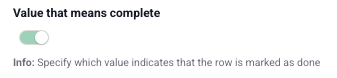
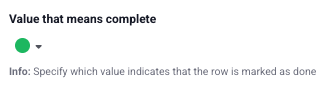
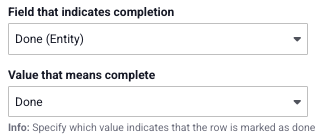
After selecting which field represents “completed,” specify the value that should be counted as complete. This ensures the system correctly identifies completed tasks.
Example values for “Completed”:
• Boolean: Checked
• Status: Green
• Single Entity: Completed
Values not allowed as completion indicators:
• Boolean: Unchecked
• Status: Gray
• Simple Entity: Not Selected
Notifications for deviations are automatically enabled and require no manual setup. You can, however, adjust deadline notifications for deviations. This allows you to receive a notification when an end date has passed. Since deviations do not have a default end date field, you must first create a custom field of type "Date" or "Date Time" and use it as the end date for notifications.
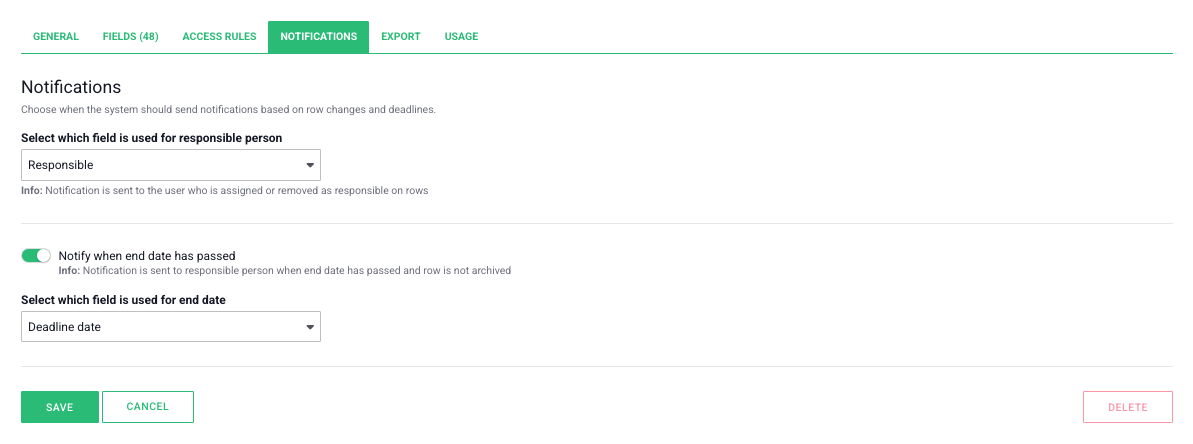
Once this field is set, deadline notifications work the same way as for regular entities:
• One day before the end date.
• The day after the end date if the deviation has not been marked as complete or archived.
Unlike regular entities, you cannot choose a custom completion field for deviations. Completion is predefined based on status:
• A deviation is considered complete if its status is “Completed”
• It is also considered complete if its status is “No Action”
Once a deviation is marked complete, no further deadline notifications are sent.
Arrived visits:
When a visit is registered as arrived, the host receives an immediate in-app notification. This allows fast reaction and smooth follow-up. This feature is automatically enabled.
Notifications for changes in responsibility:
In the Visit entity, notifications for changes to the responsible person are enabled by default. This notification can be disabled if you do not wish to receive it. When it is enabled, the responsible user receives a notification when they:
• They are assigned a visit.
• They are removed as responsible for a visit.
Deadline notifications:
Deadline notifications are not supported for the Visit entity, as it does not have an end date field.
Notification center:
In the Notification center, you can see five types of notifications.
• Improvement & Improvement Task
• Deviation & Deviation Task
• Entity & Entity Task
• Visit
• Weekly Planner
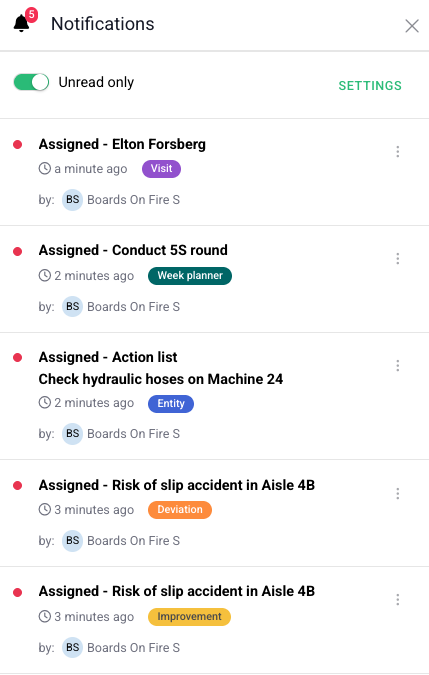
The title of an activity is always based on the entity’s name field. For it to display correctly, the field must be of type String or Text.
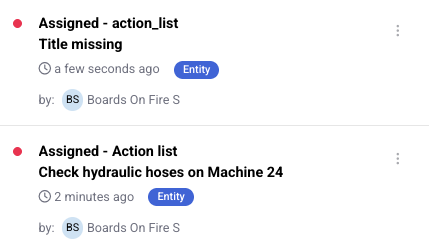
If the name field has another type or is missing, the title will automatically show as “Title Missing.”
Long titles are truncated automatically, showing only the first 100 characters.
Before displaying the title in a notification, the system indicates which entity it belongs to, using the following logic:
This ensures notifications are clear for users, making it important to provide descriptive display names for all entities.
Example:
The first notification is missing a display name → key name is shown
The second notification has a display name → used in the notification
Deadline-related notifications work the same way for Tasks, Improvements, Entities, and Deviations.
There are two types of deadline notifications:
• One day before the deadline: Reminds the user that the end date is approaching.
• One day after the deadline: Notifies the user if the deadline has passed without the item being marked as complete.
Note: No notification is sent on the actual end date. Notifications are always triggered the day before and the day after, provided the item is still not marked as complete.
In Boards on Fire, it is possible to customize the board layouts to suit your specific needs. By modifying the layout, you can create a visual structure that simplifies your workflow. You can find this option under the board’s Settings
There are many smart add-on features in Boards on Fire. As a logged-in user, you can find a list of them all under Add-ons in the left-hand menu!
In Boards on Fire, it is possible to customize the board layouts to suit your specific needs. By modifying the layout, you can create a visual structure that simplifies your workflow. You can find this option under the board’s Settings
There are many smart add-on features in Boards on Fire. As a logged-in user, you can find a list of them all under Add-ons in the left-hand menu!
Free web demo